A Windows app in which AI automatically detects targets in your video and applies mosaic to those areas. All processing happens on your PC, and you only review and correct the detection results.

This software is for applying (adding) mosaic. It has no feature for taking off mosaic that has already been applied.
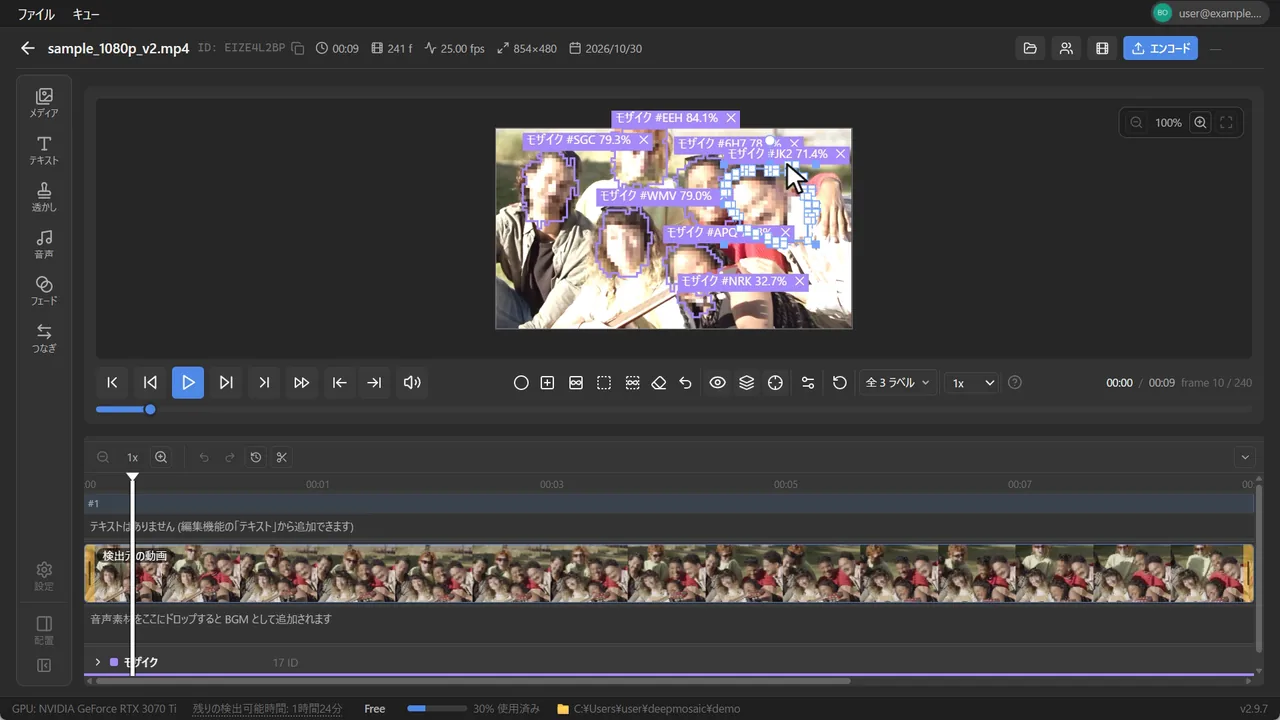
Automatic detection results (footage: Pexels).
We publish a list of what is sent and what is not. Detection, editing, and export work even when disconnected from the network.
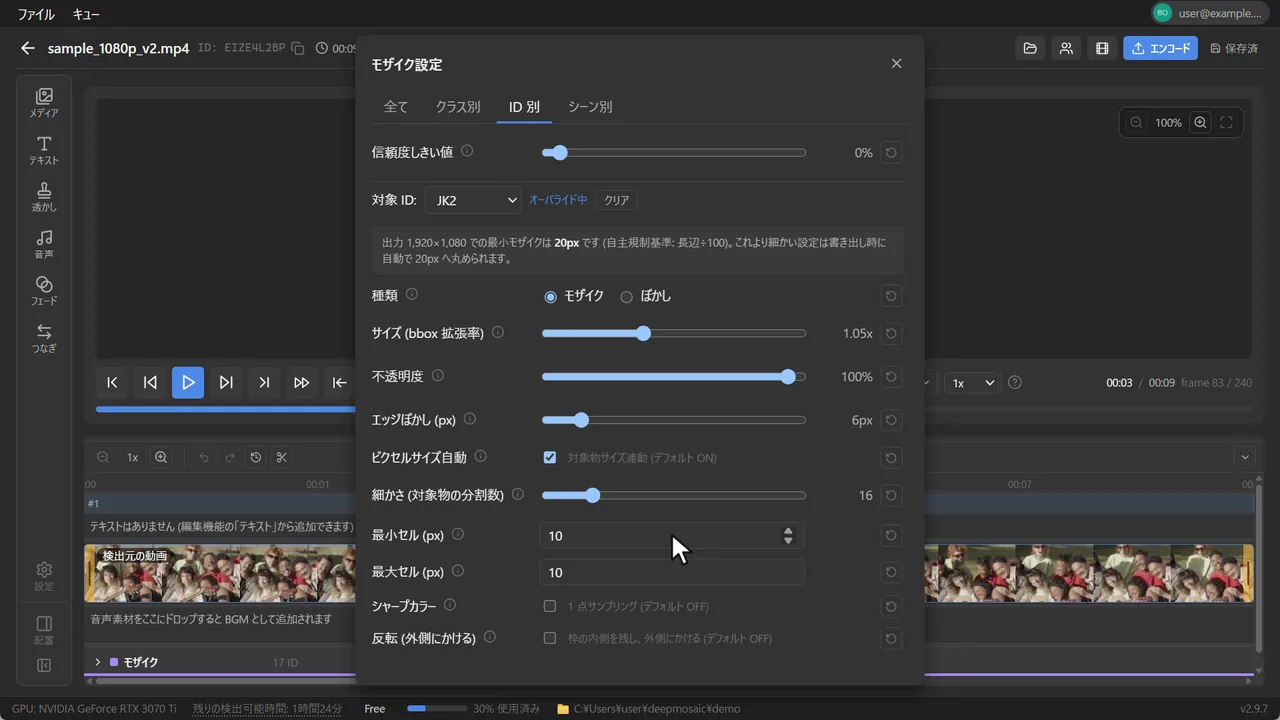
Adjust mosaic or blur, block size, the detection box expansion ratio, and edge feather. Settings can be overridden at 4 levels: the whole project, by class, by tracking ID, and by scene.
Jump to frames where detection drops out, add, delete, and move detection boxes, and filter by confidence. Fix only the spots you care about.
Software for applying mosaic. It is not for taking off existing mosaic.
The name comes from Deep Learning and Mosaic, meaning "applying mosaic with deep learning." It has nothing to do with deepfake or restoration technologies.
Deepmosaic is a Windows desktop application in which AI automatically detects targets in a video (body areas and faces) and applies mosaic to those areas. It has no feature for taking off mosaic or restoring the original footage.
How the ways of handling mosaic work differ. Costs and turnaround vary greatly by project, so we only lay out the points to weigh.
| Item | Manual (in-house) | Outsourcing | Deepmosaic |
|---|---|---|---|
| How the work is done | Watch the whole video and follow the targets by eye | Order → wait for delivery → inspect | AI detects and tracks targets across the whole video and applies mosaic. People only review and correct |
| Time tied up during processing | An operator has to stay on it | 2–5 days of waiting in between | Unattended. Pick up from review once it finishes |
| Unreleased footage leaving your hands | Does not happen | Happens | Does not happen (everything stays on your PC) |
| Redoing work with different settings | Start over each time | Order again and wait for redelivery | Redo it as many times as you like with the same footage |
| Checking for missed detections | Watch the whole video | Watch all of the delivered video | Jump straight to where detection drops out |
| How the cost is structured | Work hours × labor cost | Number of videos × unit price | Fixed monthly fee |
Processing speed depends heavily on GPU performance and the resolution of the footage. Measured values are listed in System requirements.
Enter the number of videos per month and their length to estimate the hours used, the best-fit plan, and the difference from your current cost.
"Estimated manual work" is a placeholder value calculated as 4 times the finished length. It is not based on measurements. For your current cost, enter your own actual figures.
AI detection is not perfect. That is why we put the ability to correct at the center of the product. Add, delete, and move detection boxes, change the block size, and jump to frames where detection drops out, so you can fix only the spots you care about.

Press [ ] to move back and forth between frames where detection drops out. This makes the most common pattern of misses easier to follow.
Enlarge or shrink detection boxes from their center by 0.5x–2x. You can choose not to cut it close.
Override settings at 4 levels: the whole project, by class, by tracking ID, and by scene. Settings for a narrower scope take precedence.
Show and apply mosaic only to detections at or above a confidence you specify. You can clear out false detections before you start reviewing.
A box you place by hand follows the target automatically during playback. You can track several boxes at once, and a box ends where the target is lost.
Apply mosaic outside the box instead of inside. Keep only what you want to show and hide the background.
Automatically finds the position and extent of block mosaic that is already in your footage, and applies Deepmosaic mosaic over it. Use it for footage where you want to even out the block size, or where you want to change the blocks to meet the standards of where you submit.
It cannot take mosaic off or restore the original footage. This feature applies new mosaic over the areas it finds.
Footage: our own sample video (with mosaic burned into the faces)
Just turn on "Mosaic" in the detection options and run detection to find block mosaic that is already in your footage.
Estimates the block size of the original mosaic and applies Deepmosaic mosaic over it. You can change the blocks under "By ID" in the mosaic settings.
The areas found are shown as polygon boxes, and you can correct them on the editing page just like other detection boxes.
Available in both the Desktop app and the Web app. The differences between the two (whether it can be used at the same time as detection of body areas and faces), mosaic that is hard to find, and estimated processing times are covered in the documentation(Japanese).
Mosaic that follows the shape of objects, consistent blocks regardless of video resolution (default), blocks set by the number across the screen width, blocks for each range of object size, and blocks proportional to a number of divisions. Adjust them to match the required values of each submission destination.
Within each detected box, AI creates the outline of the target and applies mosaic in that shape (enabled by default on PCs with a CUDA-compatible GPU; there is no setting for it). Hair and background are not blocked out in a square, so you can hide only what needs hiding. You can work with the outlines directly on the editing page.
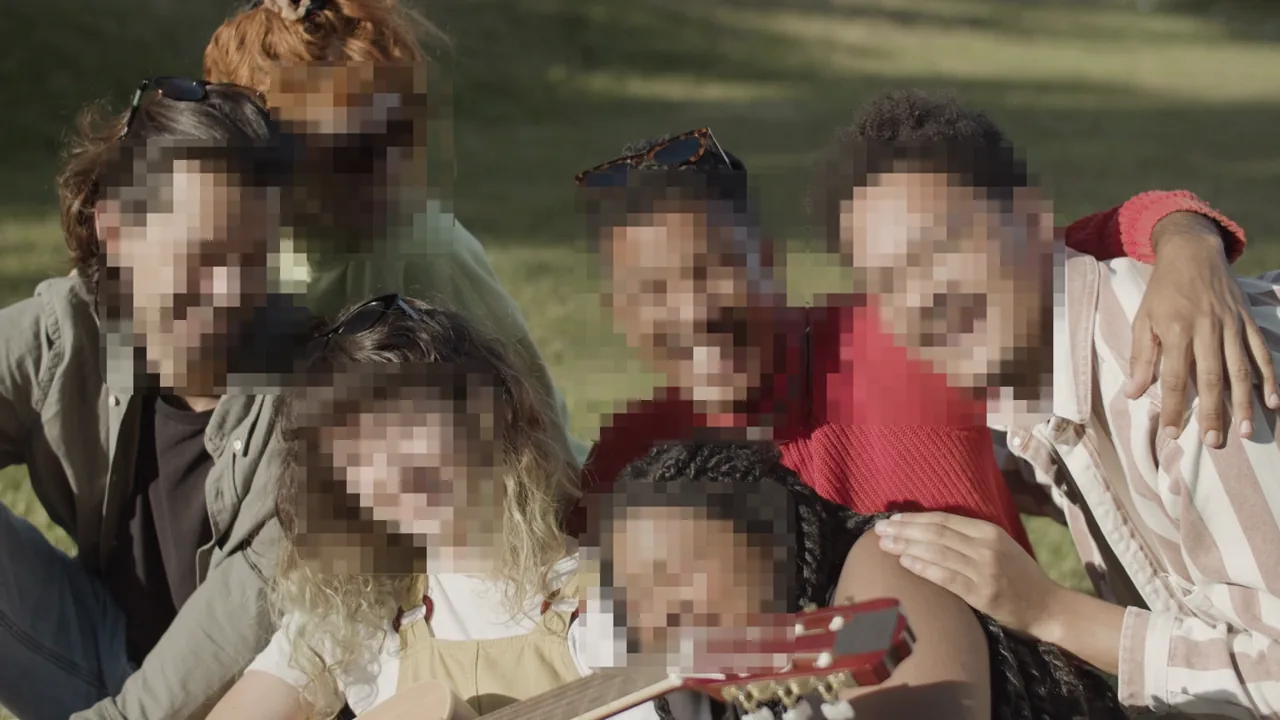
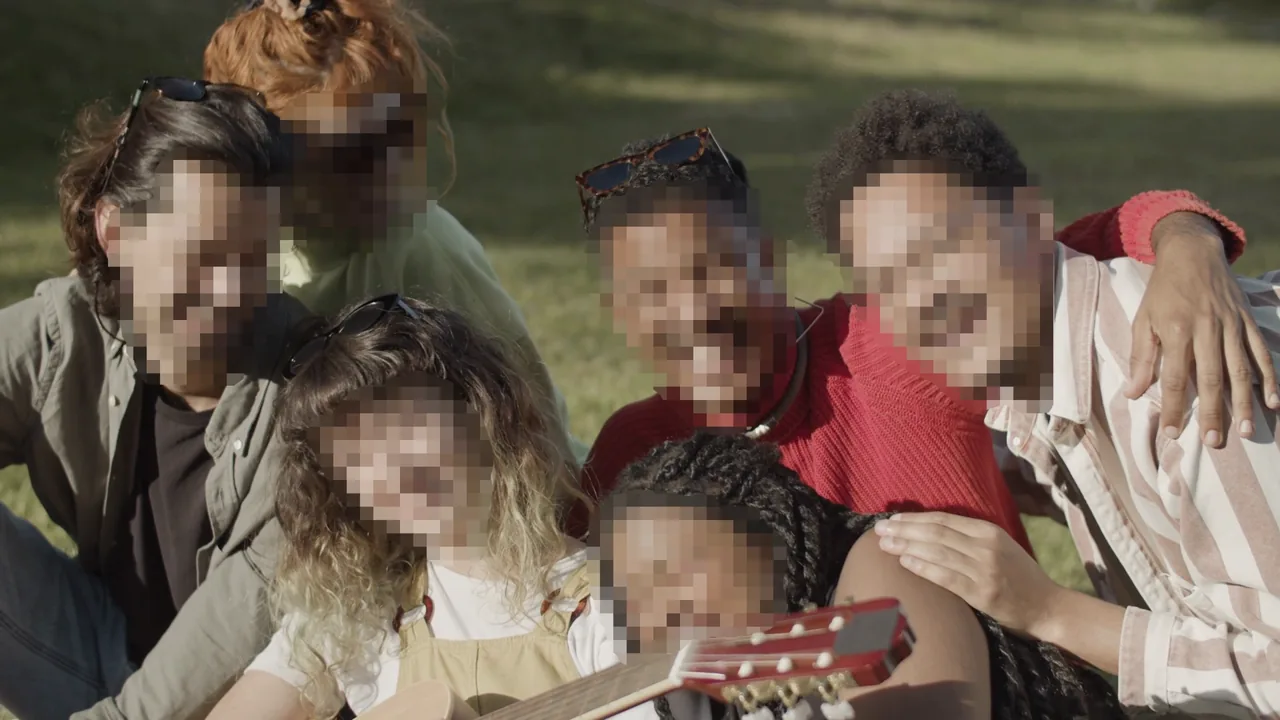
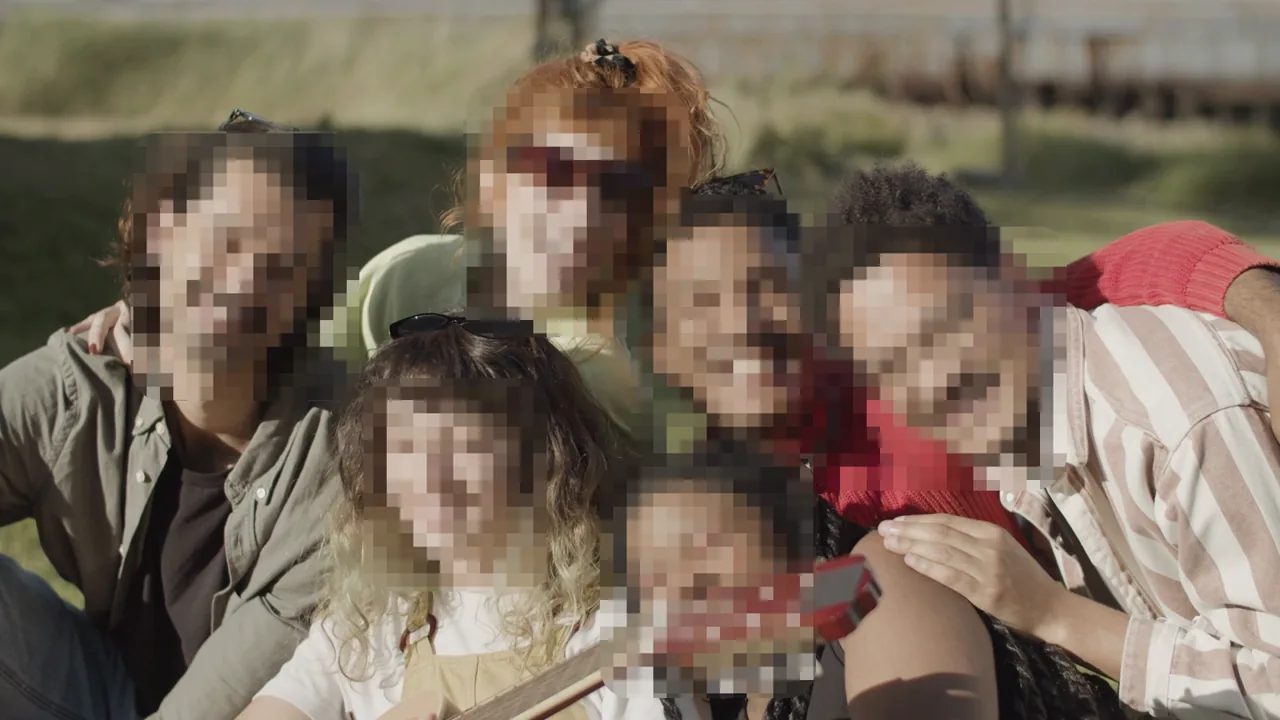
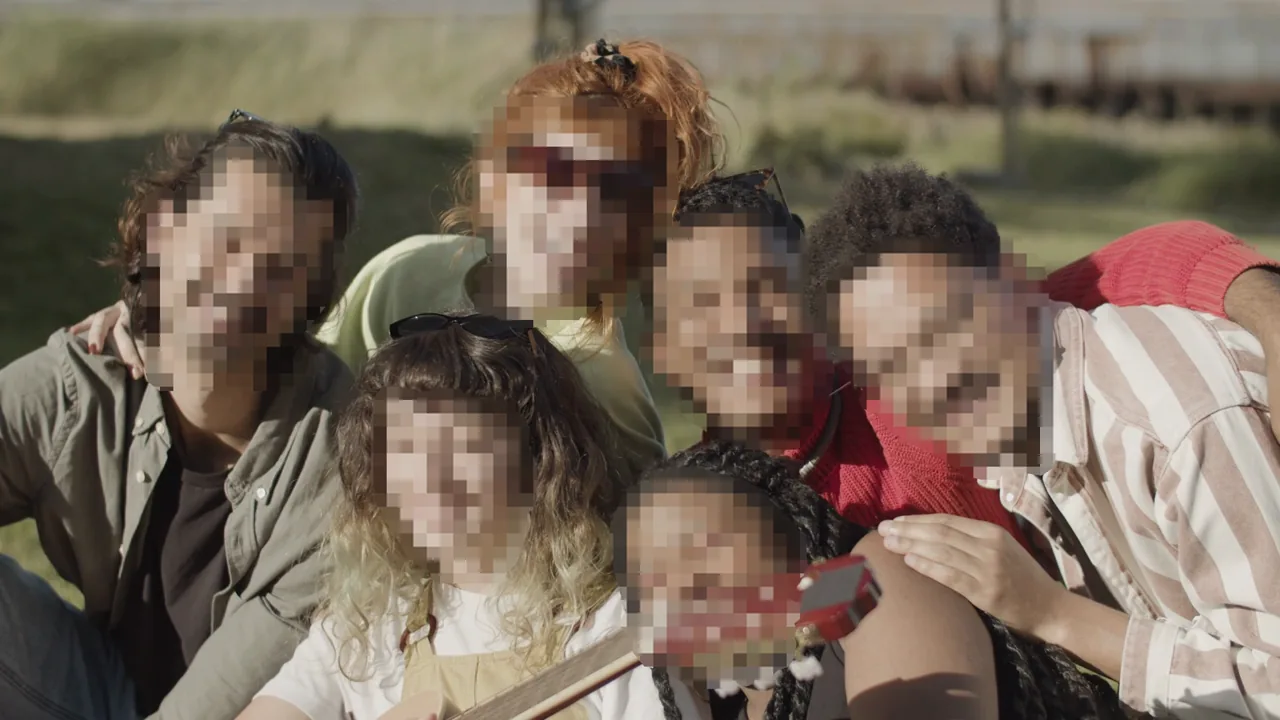
The same frame of the same video, exported with Deepmosaic with only the settings changed. Footage: Pexels
The order of priority is By ID > By class > By scene > All. Settings for a narrower scope take precedence. A scope with an override shows an indicator, and you can clear each one individually.
Each setting can be reset to its default with the button at its right end. You can drag the panel to any position and keep editing with it open.

From cutting and reordering unneeded scenes to adding text, BGM, and transitions, you can do it all on the timeline of the editing page. Your edits carry over to the export as they are.
Drag either end of a clip to trim it, and split, delete, or reorder clips. You can also leave gaps between clips.
Import video, image, and audio files and arrange them on the timeline. An image can become a clip of any length.
Place text anywhere on the screen and choose a typeface (5 types) and bold. Overlay images such as logos as watermarks.
Place BGM on an audio track and adjust its position and volume while watching the waveform. You can also change the volume of the original video's audio.
Set a fade in and fade out at the start and end of the video, and transitions at the joins between clips. Choose a fade or a transition from the scissors at a join, and set the duration and type in the sidebar. Fades can also be applied to the start and end of each clip.
Even after cutting or reordering, mosaic is applied to the segments of the original video that AI detected. Imported media is not detected.
Even as the number of videos grows, folders and tags take you straight to the video you need. With Enterprise, members of an organization can share one subscription.

How to manage an organization(Japanese) · Enterprise inquiries
We publish what data is sent and the steps for running the app with the network disconnected. You can check it for yourself.
Automatically import the mosaic information detected by AI into your Premiere Pro project. Instead of applying mosaic from scratch, you only make the final adjustments in the editing environment you know.

Select files or folders, or drag and drop them. You can process several videos at once.
4 stages: Prepare → Preprocess → Detect → Analyze. You can wait while checking the processing fps and the time remaining.
Review and correct the detection results, then send them to Premiere Pro or export with mosaic burned in.
You can subscribe to a paid plan from the profile menu in the app (if you downloaded the Windows version), or use "Subscribe" on each plan and sign in with your Web app account. You can use your plan with the same account in both the Desktop app and the Web app.
For indie creators and individual videographers. An allowance sized for 1–3 videos a month.
For freelance editors and individuals working close to full time.
+ maintenance fee / month
For production companies and post-production houses. Starting from 1 account.
We can also discuss integrating it into your company's systems and services. We will provide a separate quote depending on the scope.
Import up to 2 hours of video in total for free for 7 days from the day you first launch the app (30 minutes without signing up) / The free period ends after 7 days or 2 hours in total, whichever comes first / Up to 2 hours in total on 1 PC (even if you create a new account) / No credit card required / After the free period ends, you can keep editing and exporting existing projects
See the pricing page for details.
We do not make claims such as "guaranteed to pass review" or "zero missed detections." We publish in advance the conditions under which detection accuracy tends to drop.
Measured detection rates will be published together with the measurement conditions (the number of hours and scenes in the test data). Until the figures are finalized, we do not make definitive claims about accuracy.
It is a Windows desktop app that uses AI to automatically detect and track targets in a video and apply mosaic to those areas. You can review and correct the detection results in the editing screen, and it supports exporting videos with the mosaic burned in and importing the mosaic information into Adobe Premiere Pro. It is intended to streamline pre-submission work in video production where mosaic must be applied.
No. Deepmosaic is software for applying (adding) mosaic to videos. It has no feature to restore footage that already has mosaic or other edits to its original state, and there are no plans to add one. The AI only detects the positions of targets, and the app then overlays mosaic on those areas and outputs the result.
If you turn on the "Mosaic" detection target, the app finds the position and extent of existing mosaic and lets you apply new mosaic over it. It cannot take mosaic off or restore the original footage.
Yes. AI detection, editing, and export all happen entirely on your PC. Video, audio, frame images, the coordinates of detection results, and file names are never sent. After the initial setup, the app works even with the network disconnected, so you can check this yourself. A list of the data that is sent is published in "Data transmission disclosure".
No, we cannot guarantee it. Review is at the discretion of each organization, and it is not something we can be involved in. The software provides the mosaic block size and coverage as settings and streamlines the work of checking for missed detections. Final checks and responsibility for the content rest with the creator.
You can review and correct all detection results in the editing screen. You can add, delete, and move detection boxes, change the mosaic block size, and jump to frames where detection drops out (the [ and ] keys). Cases the AI struggles with (extreme backlighting, heavy motion blur, partial occlusion, and so on) are published in "Known weaknesses and limitations".
Within a project in the app, you can change the mosaic range, block size, and type at any time and export again. You can redo it as many times as you like with the same media. Exports are saved as new files, and you choose the destination each time you export, so the original video is never overwritten automatically. However, mosaic cannot be taken off an exported video that already has the mosaic burned in.
It depends heavily on GPU performance and the resolution of the media, and also on CPU performance (even when the GPU is used, video loading, preprocessing, and analysis run on the CPU). In production measurements, the median for 1080p media is about 1–3 times the video length (about 1.1× on an RTX 5070 Ti, about 1.3× on an RTX 4070 Ti, about 2.1× on an RTX 3070 Ti, and about 2.8× on an RTX 3060). The GTX 10 / 16 series takes about 10–25 times the video length, so it is not suitable for long videos. Without a GPU, detection uses the lightweight model and the "Refine mosaic" stage is skipped, so the median is about 3 times the video length, though it varies greatly with CPU performance. You don't need to operate the app during processing, and you can resume from the review step once it finishes. Estimates for each GPU are listed on the system requirements page.
Yes. For 7 days from the day you first launch the app, you can import up to 2 hours of video in total for free. Right after downloading, you can use up to 30 minutes in total, and creating a free account raises that to 2 hours. The free period ends after 7 days or when you reach the total limit, whichever comes first. Even if you sign up again with a different account, the same PC is limited to 2 hours in total. No credit card is required. After the free period ends, you can keep editing and exporting existing projects.
Processing in progress does not stop, and there are no overage charges. If your allowance is not enough, you can add more subscriptions to the same plan (Light: up to 3 subscriptions for 15 hours a month; Pro: up to 2 subscriptions for 40 hours a month). The included hours for each plan are listed on the pricing page.
AI detection also works with a CPU alone, but processing becomes much slower (about 2 fps in our measurements). For comfortable use, we recommend an NVIDIA GeForce RTX 3000 series GPU or higher. GPUs below that level have not been tested. A macOS version is in development, and its release date has not been decided. At this time, only Windows 10 / 11 (64-bit) is supported.
It supports Adobe Premiere Pro. You can import AI-detected mosaic information into a Premiere Pro project with one click. The app also guides you through setting up the plug-in automatically. Exporting videos with the mosaic burned in can also be done entirely within the app.
The app automatically checks for a new version at launch and shows a dialog if an update is available. You can update with one click.
Yes. You can cancel a paid plan at any time. There are no cancellation fees of any kind. You can cancel from the payment portal.
No, it is a different product. "DeepMosaics", which is published as open source, is a tool known for uses such as taking mosaic off. Although the names are similar, it has nothing to do with Deepmosaic in either developer or features. Deepmosaic is software for applying (adding) mosaic to videos and has no feature to take off mosaic that is already there.

Import up to 2 hours of video in total for free for 7 days from the first launch. No credit card required.
After setup, it works even when disconnected from the network.
Windows 10 / 11 (64-bit)
You can also use the Web app, which needs no installation (Chrome / Edge). It is for trials (up to 10 minutes per video). Videos are not sent to a server; they are processed in your browser.
This software is for applying (adding) mosaic. It has no feature for taking off mosaic that has already been applied.
